
The PDF file created when a meeting pack is downloaded contains everything about the meeting as follows.
1. Meeting Details (Title, Date, Times, Notes and any comments)
2. For each agenda item in the pack (either a link or attached file) there is a cover sheet containing the title, notes and any comments followed by the content of that item. The 'Notes' come from the description if it is a file and from the 'Body' area for a page. In the case of a Policy then all the Policy 'master Data' and also the list of approvers is displayed. For an agenda item that contains a link to a page with multiple files the the content of all the files will be shown.
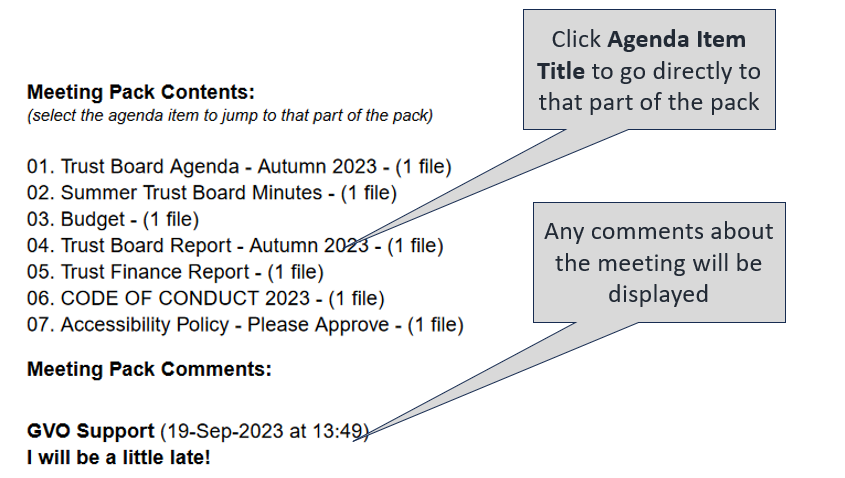
3. The list of agenda items at the top of the file allows you to click on it and jump to that item (it is bookmarked).
This is now shown in more detail....
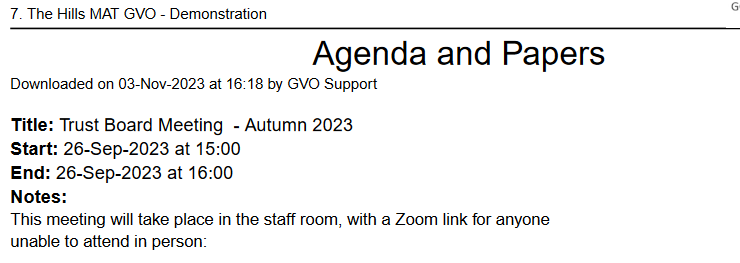
The pack download starts with the meeting title and any meeting notes (eg Teams / ZOOM link) and the meeting date/time stamp...
This is followed by the list of agenda items...these are BOOKMARKS for each Agenda Item that allow you to go straight to that item in the pack (useful if the pack is large). Any comments added about the meeting itself are also displayed.
...and then for each agenda item in turn there is a 'Cover Sheet' with the notes and comments/approvals followed by the actual document content.
a) Cover Sheet (in the case of a Policy this includes the Approvals list). There is a 'Back to Top' link that takes you back to the first page where the agenda items are listed.


b) Content of that agenda item (if there are multiple files these are shown in sequence.

NOTES:
a) Any file access restrictions with links (Agenda Items) are respected with a message saying 'You do not have access to this file' - so the meeting pack download may not be identical for all Governors/Trustees depending if certain items are restricted
b) If any file formats are not supported then download will state that - GVO supports most common file formats
c) If a link in a meeting pack points to a file that has been deleted then the message 'You do not have access to this page' will be displayed