
The GVO generates a 'Preview' of all documents added to GVO - this allows very quick access to the content when that item is viewed within GVO.
The preview is effectively a PDF version of any WORD, PowerPoint, Excel, Jpeg (image) file that has been added - there are some strange file formats that GVO cannot accept and if that is the case then no preview is generated.
The Preview that is generated is in the same format as you would see if you printed the document - this can cause some problems with EXCEL files - sometimes lines of data are missing or the data is split across multiple pages.
In most cases the preview for WORD & PowerPoint files will be fine. In some cases the Preview of an EXCEL file may not be as you want it especially if the EXCEL file has multiple TABS. This can be resolved by changing the settings in the EXCEL file (GVO is generating the preview based on the settings in the excel file).
The two things to check in your EXCEL file are:
1. Page Layout - these settings determine how the EXCEL file will be printed (landscape or portrait, zoom level to determine how many pages deep and wide the printout will be). These settings can be accessed from the 'Page Set-up' on the Page Layout tab in EXCEL using the small down-arrow - see below
TOP TIP: The WIDE setting must always be 1. For tables of data that are wide it is best to use 'Landscape'. If the preview is too small you can always increase the 'TALL' option. 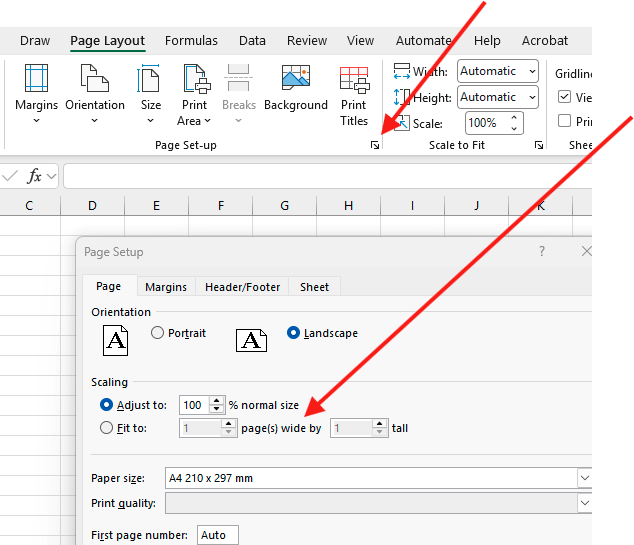
2. Print Range - this determines the data that is to be printed (to avoid printing information not needed). If data is missing from the Preview in GVO then please check the print area in EXCEL as that is the likely cause. These settings are set in the 'Print Area' section of 'Page Layout'.
Note: You will need to do this for each worksheet - the preview generated will show all worksheets and will respect the Print Range set for each one.

If no Print Area is set then all the data in the EXCEL file will be in the Preview. To set the Print Area (to select the data you want in the preview) go to the worksheet, select the cells you want in the preview and then use Print Area/Set Print Area - if you use the Print function in EXCEL you will see a preview of what would print and that will be the same as the Preview you will see in GVO. Do this for all worksheets.
In the example below the table has been selected...and the 'Print Area' set..

...and the resulting Print Preview (and GVO Preview) is as shown below.

Top Tip: If your GVO Preview is not how you want it to be then adjust the Page Layout and Print Area in EXCEL (on all worksheets).